
Module 1 of 4
Connecting your channel
What happens when you connect a store or marketplace to OneSila, and which choices you make on the way?
What connecting does
Connecting gives OneSila access to your channel. From then on, OneSila can read the channel and, later, send your products to it.
What OneSila reads
How your channel is set up: its stores or countries, its languages and currencies. For a marketplace, also its categories and product types.
In this module you learn to
- Find the instructions for connecting your channel.
- Know when to change what OneSila sends, and when to leave it.
- Switch off the stores and countries you don't sell on yet.
This course builds on Properties, Rules & Mapping. You don't need it for this module, but you will from module 2 on.
Find your channel and follow its instructions
OneSila connects to hundreds of channels. Each one connects a little differently, and the app shows you how.
Three steps
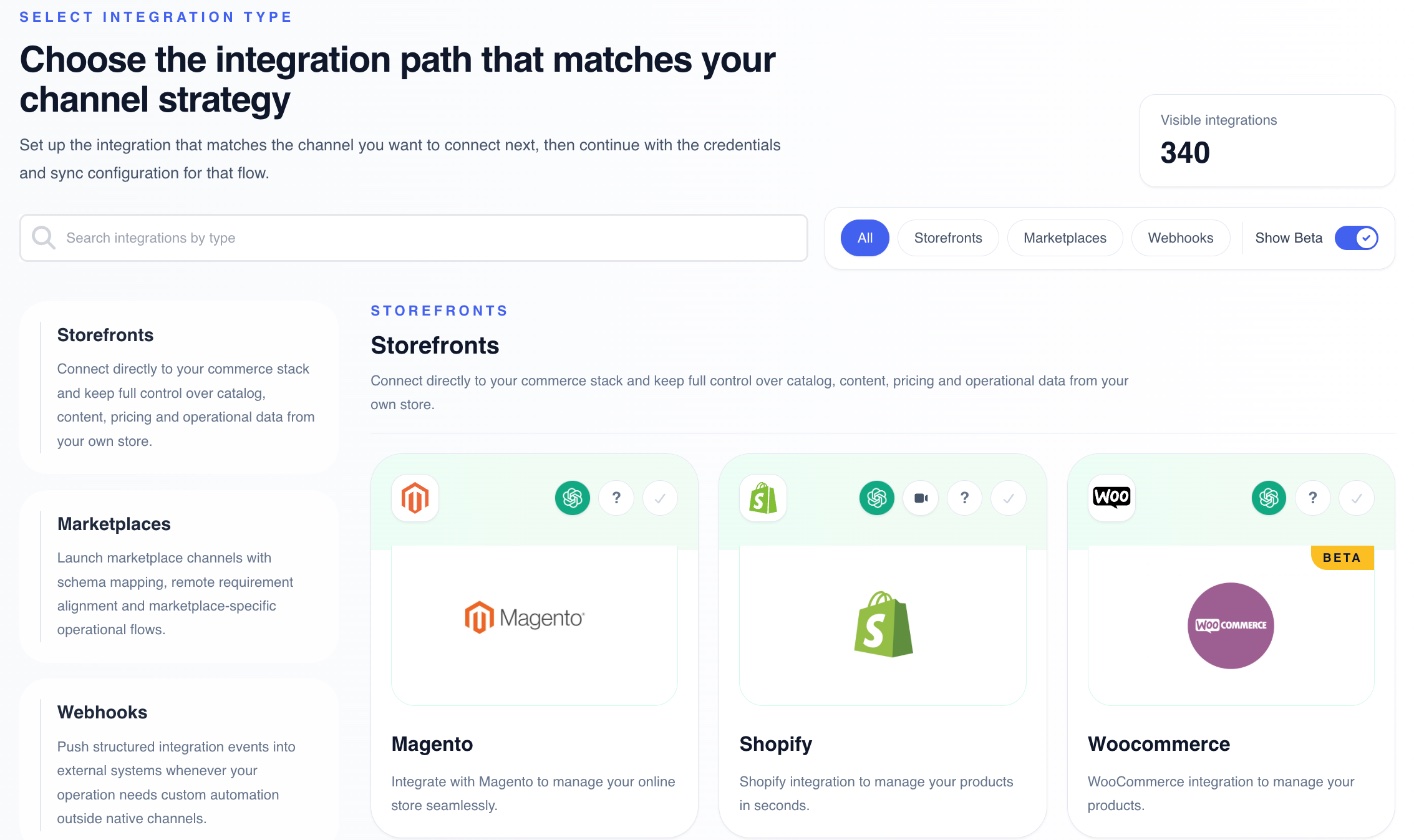
- Go to Integrations › Create Integration.
- Search for your channel, or filter on Storefronts or Marketplaces.
- Click the ? on its card, and follow the instructions.
Your channel isn't in the list? Then contact our support or sales team, and tell us what you need.
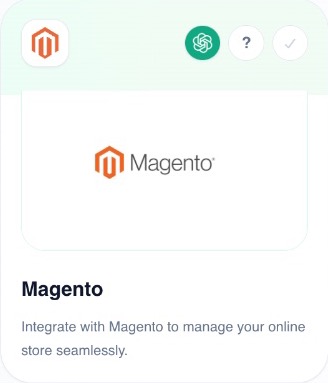
Already connected? The ? also sits at the bottom of the channel's General tab.
Check what OneSila sends
Each channel has a few switches for what OneSila sends to it. The defaults suit most companies, so you can usually leave them as they are.
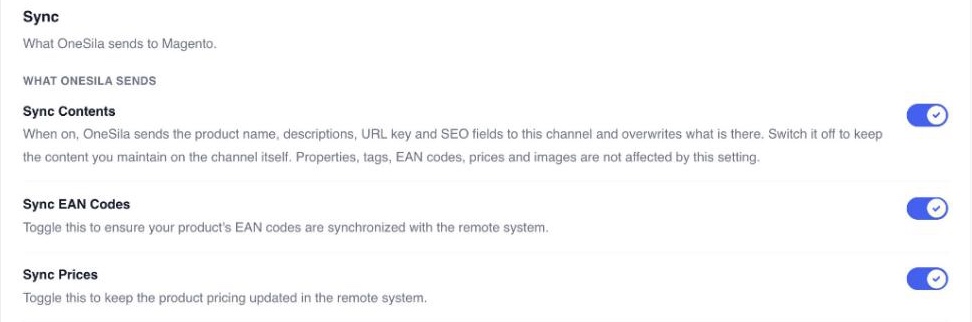

When you might change one
Only when something else already takes care of it. Two examples:
- You manage prices with a separate pricing tool. Switch Sync Prices off, so OneSila leaves your prices alone.
- You write your texts on the channel itself. Switch Sync Contents off, so OneSila leaves those texts alone.
Switch off what you don't sell on yet
One channel can hold several stores or countries. An Amazon account has a country for each marketplace you can sell on. Each has its own Active switch.
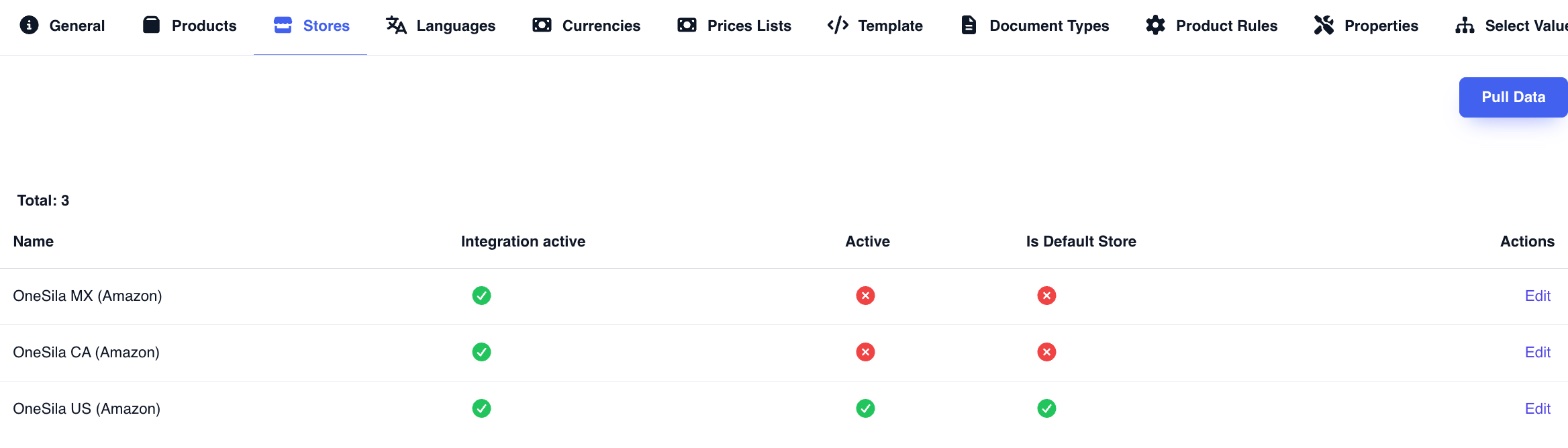
An inactive store or country
It's hidden on your products' Channels tab and gets no updates. Switch it on when you're ready to sell there.
The channel's own Active switch
Next to the channel's name on the General tab. It turns the whole channel on or off, all its stores at once.
Connect the right account
Do you have more than one account on a marketplace, like a Shein account for the UK and one for Europe? Ensure you are signed in to the right account before authorizing a connection.
Two habits that help
- Name it clearly. Give each channel a name that says the account and the region, like "Amazon · Brand B · EU".
- Check the Stores tab. Right after connecting, check that it lists the countries you expect for this account.
Check yourself
6 questions
Pick one answer for each. You'll see right away if it's right, and why.
-
1What does connecting a channel give OneSila?
Show the answer
Right answer: A. Access to the channel, to read from it and send to it. Connecting is the key. Importing and sending come next, in modules 2 to 4.
-
2Where do you find how to connect Magento?
Show the answer
Right answer: B. The ? on its card in Create Integration. Each channel's card has its own instructions. Once connected, the ? is also on the channel's General tab.
-
3You write your descriptions on the channel itself and want to keep them. Which switch do you turn off?
Show the answer
Right answer: C. Sync Contents. Sync Contents sends names, descriptions and SEO texts. Switched off, OneSila leaves the channel's texts alone.
-
4You set your channel's prices with a separate pricing tool. What do you do?
Show the answer
Right answer: D. Switch Sync Prices off. Then OneSila leaves your prices alone, and your pricing tool stays in charge.
-
5Your Amazon account covers the US, Canada and Mexico. You only sell in the US for now. What do you do?
Show the answer
Right answer: B. Switch Canada and Mexico off on the Stores tab. Each country has its own Active switch. Switching off the whole channel (C) would stop the US too.
-
6You've just connected a second Shein account. What do you check first?
Show the answer
Right answer: A. That the Stores tab lists the countries you expect. It shows straight away whether you connected the account you meant to.
Next · Module 2
Importing a channel
How do you bring what you already sell on a channel into OneSila, and link it to your own properties and product rules?
Go to module 2