
Module 2 of 4
Importing a channel
How do you bring what you already sell on a channel into OneSila, and link it to your own properties and product rules?
An import in three steps
Most companies already sell on the channel they connect. A listing is your product as it appears on the channel. An import brings those listings into OneSila, linked to your own properties and product rules. It works the same for online stores and marketplaces.
So the work moves into OneSila. From then on, you manage your products in one place instead of on the channel, with consistent results.
Capture
OneSila fetches every listing as it is, and keeps a copy. No products are created yet.
Map
You tell OneSila which of your words means which of the channel's: product types, properties and values.
Apply
You decide what each listing becomes: a new product, one you already have, or nothing. Then you approve.
After that, you switch your channel back on, and find the products with gaps.
New channel with nothing on it yet? Run the import anyway. It finishes quickly, and OneSila marks the channel's first import as done, so the steps after it can follow. Like any import, it switches the channel off: switch it back on afterwards (“Done. Time to switch your channel on”).
In this module you learn to
- Know what the import will bring in.
- Start an import and follow it while it runs.
- Explain what mapping is for, and map what the import needs.
- Decide what each listing becomes, and approve.
- Finish the import by switching your channel back on.
- Find the products with gaps, and know which ones to fix first.
This module uses what you learned in Properties, Rules & Mapping: properties, values and product rules.
Understanding what will come in
A new product gets everything from its listing. A product you already have keeps what it has, and only gets what's still missing.
Images
Downloaded into OneSila, in the listing's order, as images for this channel. A new product also gets them as its default images. Your own default images are never replaced.
Texts
Name, descriptions, SEO fields and bullet points come in as content for this channel, per language. A new product also gets them as its default content. Your own default content is never overwritten.
Values
Translated into your words by your mapping (step 2): their Blue comes in as your Navy. A new product gets every value. A product you already have only gets the values it doesn't have yet.
Prices
The channel's prices go into a price list for this channel, one per currency. If the channel has none yet, the import creates it. Your product's own price is only filled where it's empty.
Worth a look after the import
- The channel's Prices Lists tab. A new price list starts with Price list includes VAT and Auto Update Price and Discount Price switched on. Make sure that's what you want.
- The import's Warnings tab. What couldn't come in is listed there, like a price of 0.00 or a sale price above the normal price.
Capture your listings
A capture fetches every listing on your channel as it is, and keeps a copy in OneSila. It creates no products yet. That comes in step 3.
While it runs
The Imports tab shows the progress, like "120 of 480 fetched" and "about 3 min left". A big catalogue takes a while. You can close the page.
You don't have to wait. You can already start mapping on the channel's Product Rules and Properties tabs: step 2.
Your channel is switched off
During the import, OneSila sends nothing to your channel. Your listings stay as they are. Page 11 says when to switch it back on.
Mapping connects your structure to the channel
In Properties, Rules & Mapping you built structure: one value for one meaning, one rule per kind of product. That makes your catalogue consistent and predictable. Mapping is the translator between your catalogue and your channel.
Simplified example, with Amazon as the channel. Each arrow is one translation: you set it once, and OneSila uses it every time.
Your words stay yours
You keep your catalogue in your own words. You don't have to bend it to fit the channel.
Predictable
You know what the channel gets. Change a value once in OneSila, and the channel follows.
Set once
You set it once for this channel. After that it works for every product on it.
Online store or marketplace?
During the import, mapping works the same everywhere. After it, it depends on the kind of channel.
Online store
During the importYour mapping reads the listings and puts them in your catalogue, as you mapped it.
After the importOneSila keeps the structure the import set up. What you mapped goes back into the store's own fields. Everything else is sent as it was created in OneSila.
Marketplace
During the importYour mapping reads the listings and puts them in your catalogue, as you mapped it.
After the importMapping works both ways. Only what's mapped is sent. When required information isn't mapped, the listing is blocked until it is. Module 4 covers this.
How to get things mapped
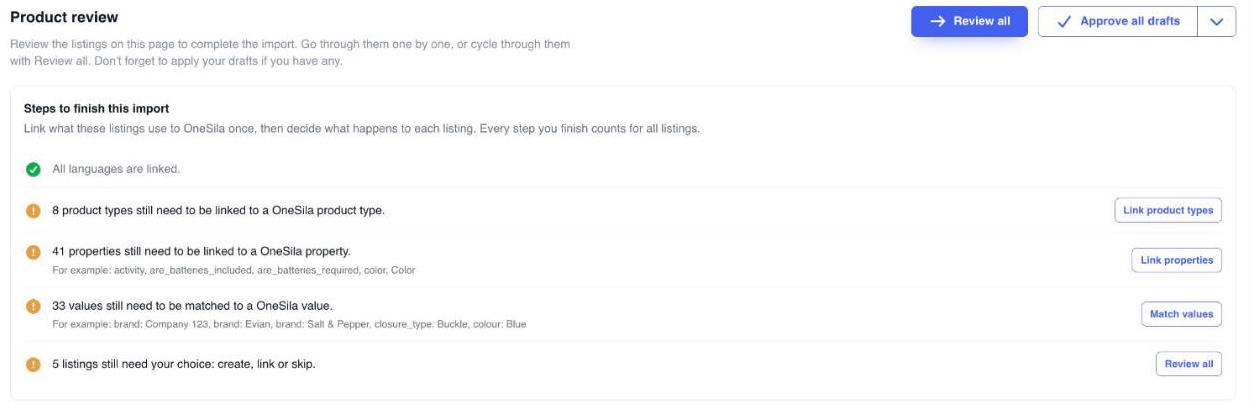
Click the import to open it. On top you find Steps to finish this import: your to‑do list of the mappings this import still needs.
Only what you need
Use the buttons to map what this import uses. That way you skip the values your catalogue doesn't need right now.
Every line works the same way
Each channel shows different lines, but you work through them the same way. The last two, Pick product types and Review all, are about your listings: that's step 3. The next page goes through the lines one by one.
What each line asks for
Each line lists things that need mapping to OneSila. Here's what you may need to link, with some context to help you decide.
How to map
We use properties as the example. The steps work the same on every tab.
Click Start Mapping, or edit a property AI Map didn't link. You then find yourself in one of three situations.
1 · AI Map has a suggestion
Under OneSila Property you see the AI suggestion, with a percentage for how sure it is. Click the one that fits: it fills in the field. A low percentage? Check before you pick.
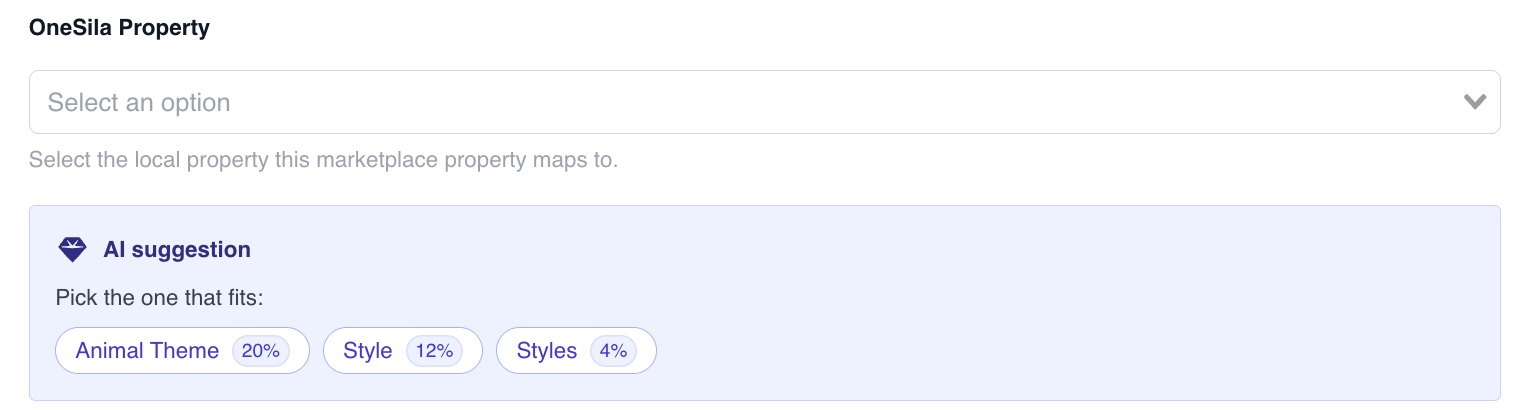
2 · The suggestion doesn't fit
Leave it, and pick the right property in the OneSila Property field yourself.
3 · You don't have it yet
The suggestion says No matching property found. Click the Generate button: it creates the property in OneSila.
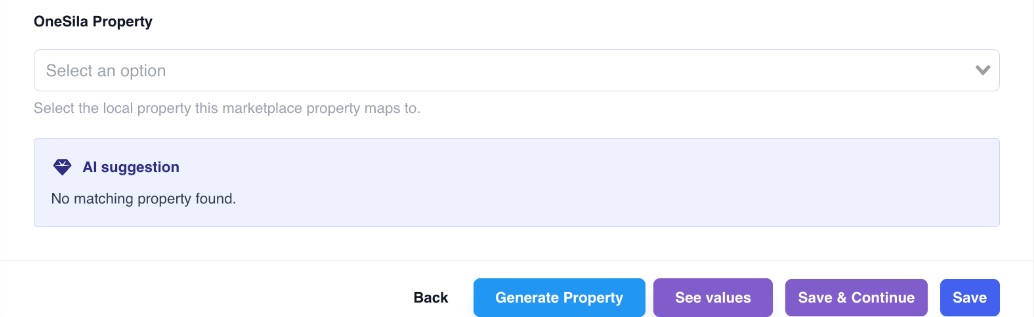
Then · Save & Continue
Whichever it was, click Save & Continue. It saves your choice and opens the next one.
Last step: applying the products
Mapping created the structure. Now it's time to link the listings themselves.
- Some are found for you, by an exact SKU or EAN match. They're waiting in Drafts.
- Some you link by hand, for example when OneSila doesn't know their SKU or EAN.
- Some you'll want to create as new products.
Click Review all to go through them one after another.
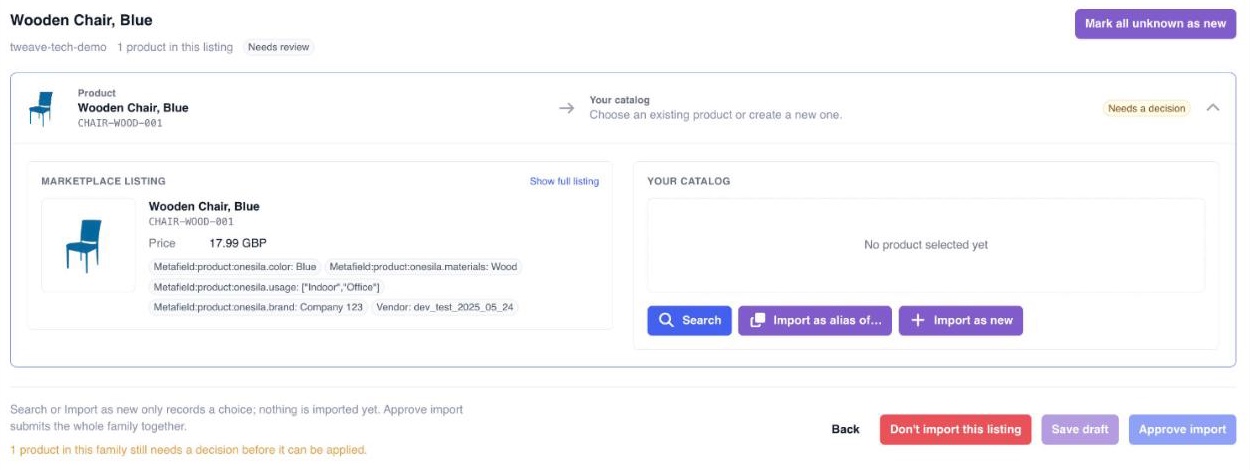
These are your options
Import as new
The product isn't in OneSila yet. It's created from the listing.
Search
The product is already in OneSila. Search for it by name or SKU, and link the listing to it.
Import as alias of…
The listing is the same item as a product you already have, but sold under its own SKU. OneSila creates a new product, an alias, linked to the one you pick. It follows that product's type and can share its EAN.
Don't import this listing
Leave it out. You can reopen it later under Rejected.
Then save or approve
A listing can hold a whole family: a T‑shirt in three sizes is one listing. Every product in it needs a choice. Mark all unknown as new gives Import as new to every product still without one. Then Save draft keeps your choices for later, and Approve import imports the family straight away.
Finish with your drafts
Before you're fully done, you need to decide what to do with your drafts: process them one by one, or in bulk. Further down this page, you'll also find some useful shortcuts for when you have a lot of listings to process and need some bulk decisions.
Review all only shows listings that still need a choice. All pre-approved listings sit in Drafts. These need your final approval.
Approve your drafts: one by one, or all at once
One by one
Open the Drafts tab, open a listing, and click Approve.
Use it when you want to look before anything comes in. Say, the first import on a channel.
All at once
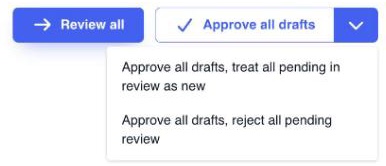
Click Approve all drafts. Every listing in Drafts comes in, with the choices already made.
Use it when you trust the matches, or you already checked a few.
More actions: decide the rest in one go
Hundreds of listings still waiting for a choice? Click the arrow next to Approve all drafts. Both actions approve every draft, decide the rest for you, and import straight away.
Approve all drafts, treat all pending in review as new
Every pending product is created as new. Linked and matched products stay linked.
Use it when OneSila is still empty, and this channel is your first.
Watch out: on a filled catalogue, this makes duplicates.
Approve all drafts, reject all pending review
Pending listings with no known product are rejected: you can reopen them under Rejected. Partly known listings stay for you to decide.
Use it when OneSila already holds your full catalogue, and the channel has listings you don't want back: old, discontinued or duplicate ones.
Done. Time to switch your channel on
This is what the import was for: from now on, you change a product in OneSila, and your channel follows. That starts when you switch it back on.
Keep your mappings
From now on, OneSila uses your mapping for every change it sends, the way “Mapping connects your structure to the channel” shows. So leave your mappings in place.
Find and fill the gaps
It's likely that not every listing had all the required or optional information on your online store or marketplace. That's quite common.
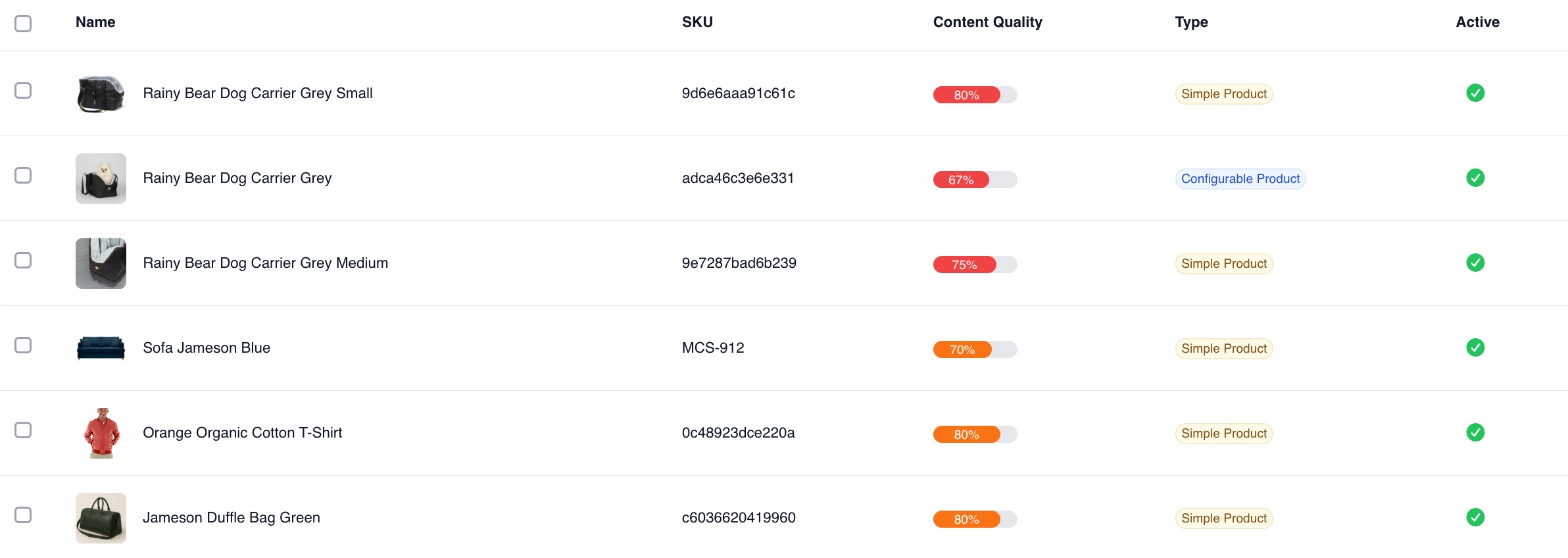
For example, 5 of your T‑shirts had care instructions, but the others didn't. The property still went into the rule. OneSila spots these gaps straight away, and lets you fill them.

Red · Missing Information
A Required property is empty, for example one the rule already had as Required. The product isn't sent to your channels until it's filled.
Orange · Missing Optional Information
Only Optional properties are empty. Nothing is held back, but every detail you add helps shoppers find and choose your product.
Where to start
Check yourself
10 questions
Pick one answer for each. You'll see right away if it's right, and why.
-
1A product you already had has its own description. The listing brings a different one. What happens to your description?
Show the answer
Right answer: D. It stays. The listing's text comes in as content for this channel.. Your own default content is never overwritten. The import only fills what's still empty.
-
2Your product already has a price. The import brings in the channel's price. Where does it go?
Show the answer
Right answer: A. Into the channel's price list. Your own price stays.. The channel's prices go into a price list for that channel. Your product's own price is only filled where it's empty.
-
3You've started an import. What happens to your channel meanwhile?
Show the answer
Right answer: B. It's switched off. Nothing is sent to it.. So nothing is sent back while data comes in. You switch it back on at the end.
-
4Your Colour and its values are mapped to Amazon's Color. You change a T‑shirt from Navy to Black in OneSila. What does Amazon get?
Show the answer
Right answer: A. Black, in Amazon's Color field. That's the point of mapping: you change it once, in your words, and OneSila sends it in the channel's words.
-
5You import your online store. You change a property in OneSila that you didn't map. What does the store get?
Show the answer
Right answer: B. It's sent as it was created in OneSila. On an online store, mapping is for the import. What you didn't map is sent as it is. On a marketplace it's different: an unmapped property is skipped, or blocks the listing if it's required.
-
6AI Map linked the channel's Size to your Size Type. What do you do?
Show the answer
Right answer: D. Edit the property and pick the right OneSila property. AI Map is quick, not perfect. You check its work and correct it where needed.
-
7A listing has the same SKU as a product you already have. What happens?
Show the answer
Right answer: C. It's matched for you, and waits in Drafts for your approval. An exact SKU or EAN match is found for you. Approve your drafts to import it. Your product keeps what it has: the import only fills what's still empty.
-
8OneSila already holds your full catalogue. The marketplace still has old listings you don't want back. Which shortcut fits?
Show the answer
Right answer: B. Approve all drafts, reject all pending review. Only what OneSila already knows comes in. The old listings are rejected, and you can reopen them under Rejected. The other shortcut (A) would bring them in as new products.
-
9You've approved every listing. What's left to do?
Show the answer
Right answer: D. Switch the channel back on. OneSila switches the channel off during the import and leaves switching it on to you.
-
10After the import, a product's inspector is orange. What does that mean?
Show the answer
Right answer: A. Only Optional properties are empty. Nothing is held back.. Orange means optional gaps: not required, but great for conversion. Red means something Required is missing, and that does hold the product back (C).
Next · Module 3
Sending products to your sales channels
How do you put a product on your online store or marketplace, take it off again, and decide when your changes go out?
Go to module 3