
Module 3 of 4
Sending products to your sales channels
How do you put a product on your online store or marketplace, take it off again, and decide when your changes go out?
Your channels follow OneSila
After the import, OneSila holds your products. You decide which ones go to which channel, and you change them in OneSila. Your channels follow.
This module covers every sales channel: online stores like Shopify, Magento and WooCommerce, and marketplaces like Amazon and eBay. Sending works the same way on all of them. The next two pages show where they differ. Where one channel does something its own way, we name it as an example.
In this module you learn to
- Explain how online stores and marketplaces differ, and what mapping does on each.
- Add a product to your channel.
- Find the extra settings your channel asks for, like categories.
- Remove a product from your channel.
- Choose whether changes go out by themselves, and resync when needed.
- Lock a product while you work on it.
- Know how prices go out, and resync them when needed.
- Use the Queue to see what's waiting, and what went out.
- Find the products that failed or need action, and see why.
- Know why every change happens in OneSila, never in your channel.
This module builds on Importing a channel (module 2) and on Properties, Rules & Mapping.
Online stores: you set the structure
On your own online store, OneSila is in charge. Your product rules decide what a product page shows, and OneSila builds what's needed on the store for it.
Mapping is for the import
During the import, you mapped your store's fields to your own properties. After that, OneSila keeps the structure the import set up.
What you mapped
OneSila sends it back into the store's own fields. Your store's setup stays as it was.
What you didn't map
It's sent as it was created in OneSila. OneSila creates the field on the store when the first product needs it: an attribute on Magento, for example, or a metafield on Shopify.
No one checks it for you
A store takes what you send. A product goes out as soon as it meets your own product rule, and your shoppers see exactly what OneSila sent. So the quality is in your hands.
This is also why you edit in OneSila only. More on that on the Watch out page.
Marketplaces: they set the rules
A marketplace has its own product types, fields and values. It only accepts a listing that meets them. So on a marketplace, mapping isn't just for the import: it's how every product goes out.
Mapping works both ways
Only what's mapped is sent. You keep your mapping on the channel's own tabs:
- Product Rules links each of your product rules to the marketplace's product type or category.
- Properties and Select Values link your properties and values to the marketplace's fields.
Optional and not mapped
Skipped. The listing still goes out, without it.
Required and not mapped
The listing is blocked, and shows Action required. Map it, then resync the product.
The marketplace has the last word
Even a complete listing can be held for review, or refused later by the marketplace itself. You see that as the listing's status, like Pending approval or Approval rejected. The Problems pages show where to look. Module 4 shows how to fix them.
Adding a product to your channel
Every product has a Channels tab. It lists your channels, and for each one, whether the product is on it.

Undecided means you haven't chosen yet. Excluded means this product doesn't belong on that channel. Neither sends anything.
The extra settings for your channel
Some details only exist on your channel, not in OneSila. Categories are the common one. You set them per product, for that channel.
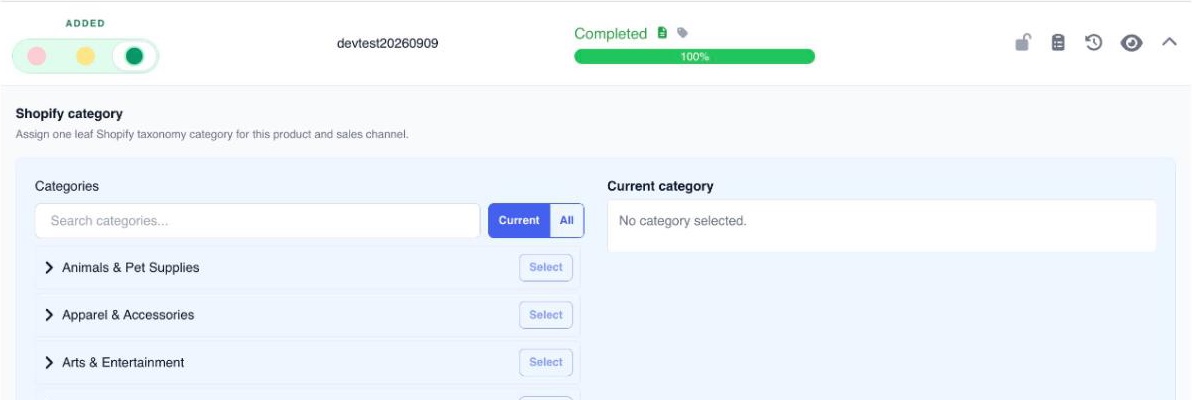
What you find under the arrow depends on your channel. Some ask for one category, others let you pick several of your own.
Removing a product from your channel
You remove a product the same way you added it: with its state on the Channels tab.

What your channel does with it
By default, the channel deletes the product. Some can keep it out of sight instead. Shopify is an example: with Archive instead of delete switched on, the product is archived, so its orders and sales history are kept.
Auto sync or not, and resyncing
Whether you want changes to go out automatically or get approved manually is a choice to make with your organisation. It depends on Auto sync, which you set at the top of your channel's General tab. Let's look at how that works.

Auto sync off
Your changes only go out when you resync a product manually, or send them in bulk from the Queue.
Auto sync on
All changes get published 15 minutes after the last edit on a product, without further approval.
Adding, removing and resyncing a product never wait, whatever Auto sync says.
Manually resyncing a product

A resync sends a product in full again. When a product needs one, its Resync button turns orange. To resync many products at once, go to Integrations › Assignments, filter on your channel and on Needs resync, select them, and click Bulk Resync.
Use it when you switched your channel back on, after a failed sync you fixed, or to send a product's waiting changes with Auto sync off.
Locking a product
Auto sync sends every change by itself. Sometimes one product should stay as it is on your channel for a while: you're reworking its texts and images, or someone still has to check them. Lock it, and nothing goes out for that product until you unlock it.
How to lock
While it's locked
- Your channel keeps the product as it is.
- Its changes wait in the Queue, under Held by a lock. Even with Auto sync on.
- Adding, removing and resyncing it are refused.
- Prices aren't held: they still go out.
When you unlock
Click the lock again, or Unlock all channels. You can also unlock from the Queue.
The held changes then go out like any other change: by Auto sync, or when you resync or send them.
Lock all channels only locks the channels you have now. A channel you add later isn't locked.
Prices ignore Auto sync
Prices don't follow Auto sync. Change a price, an RRP or a price list, and it goes out by itself, shortly after you save.
OneSila checks your channel
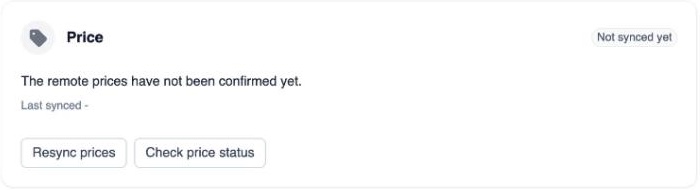
After sending a price, OneSila reads it back from your channel until the two match. You see the result per channel, on the product's Channels tab: click Sync history, the second button in your channel's row.
| Price status | What it means |
|---|---|
| Completed | Your channel has the right price. |
| Pending confirmation | Sent. OneSila is checking whether your channel took it. |
| Out of sync | Your channel shows a different price than OneSila. Someone may have changed it in your channel. |
| Update failed | Your channel refused the price. Fix what it says, then resync. |
Resync prices
Resync prices sends only the prices again. Check price status reads the price on your channel once more. Normally you won't need either: use them when a price shows Out of sync or Update failed.
Price changes also show in the Queue, under Price updates. With Sync Prices switched off for your channel, no prices are sent at all.
The Queue: what's waiting, and what went out
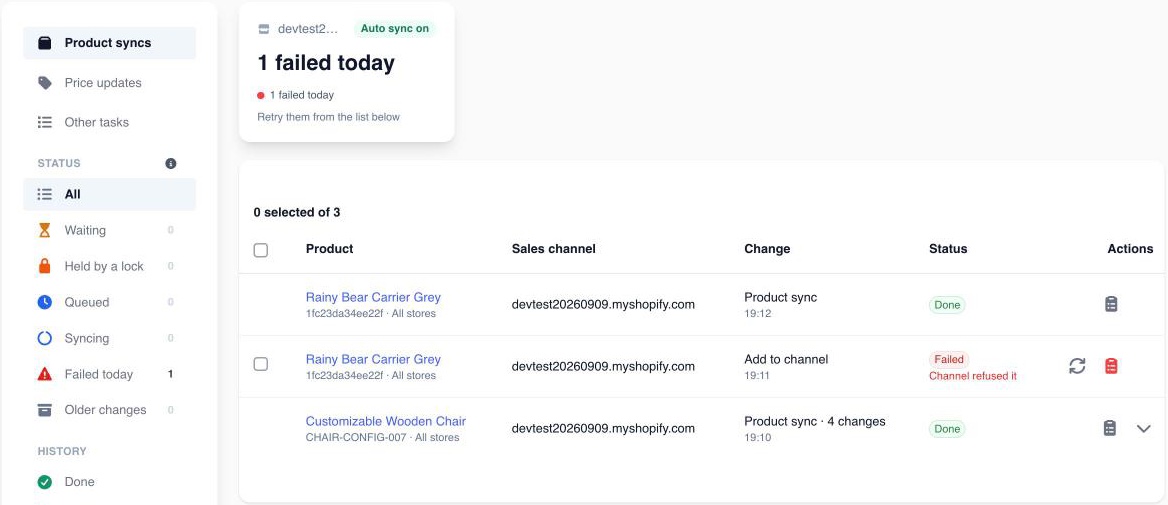
Every channel has a Queue tab. It shows all changes that will be auto-synced or need a manual sync, and the history of all changes. To see all your channels at once, go to Integrations › Processing Queue.
| Status | What it means |
|---|---|
| Waiting | Ready, but not sent yet. With Auto sync off, it stays here until you send it. |
| Queued · Syncing | On its way to your channel, or being sent right now. |
| Failed today | The channel refused it. Open it to see why, fix the product, and retry it from the list. |
| Done · Merged · Skipped | History. Merged means several changes went out together. Skipped shows why it wasn't sent. |
To send: pick one and click Send now, tick a few and click Send selected, or click Send all waiting. Don't want a change to go out? Remove from queue.
Where to spot problems
Sometimes your channel refuses a product, or something needs fixing first. OneSila shows you where: first across all your channels, then per product.
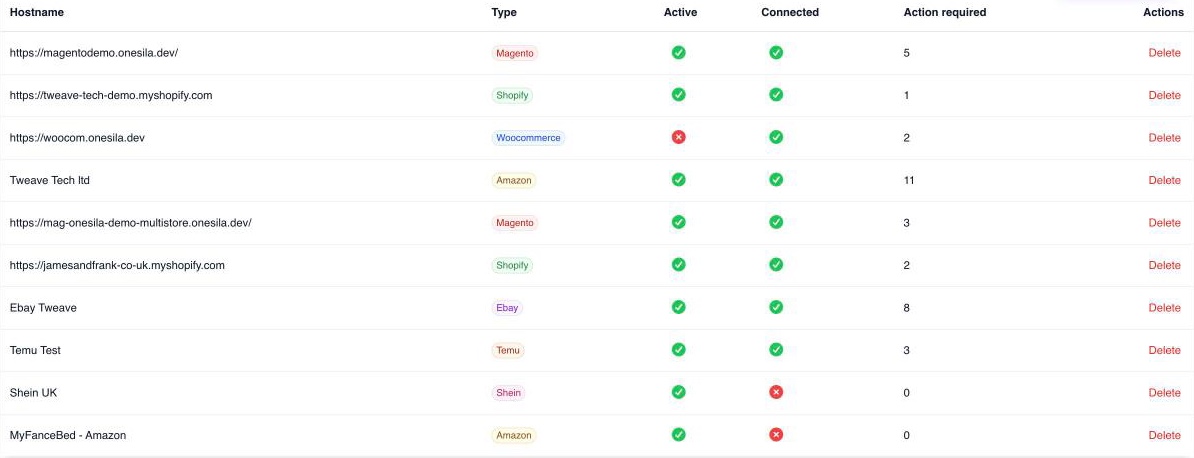
1 · Your channels at a glance
Integrations lists your channels. Action required counts the products on each channel that need you. You also see whether each channel is active and connected.
2 · Every product, on every channel
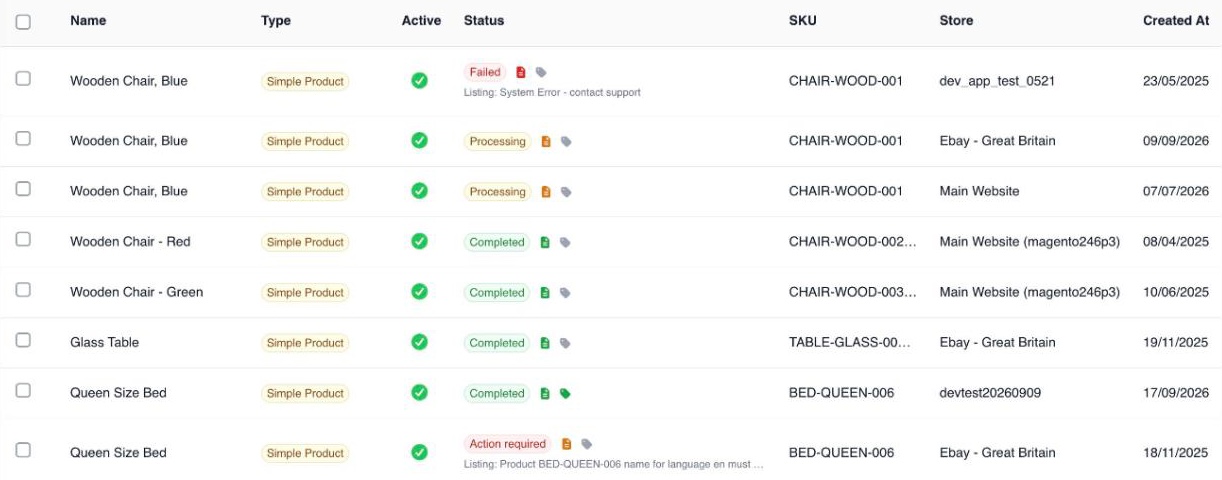
Integrations › Assignments lists every product on every channel, with its status. Under Failed or Action required, you see why. Filter on a channel or a status to see what needs fixing. Your channel's own Products tab shows the same for that one channel.
What happened to one product
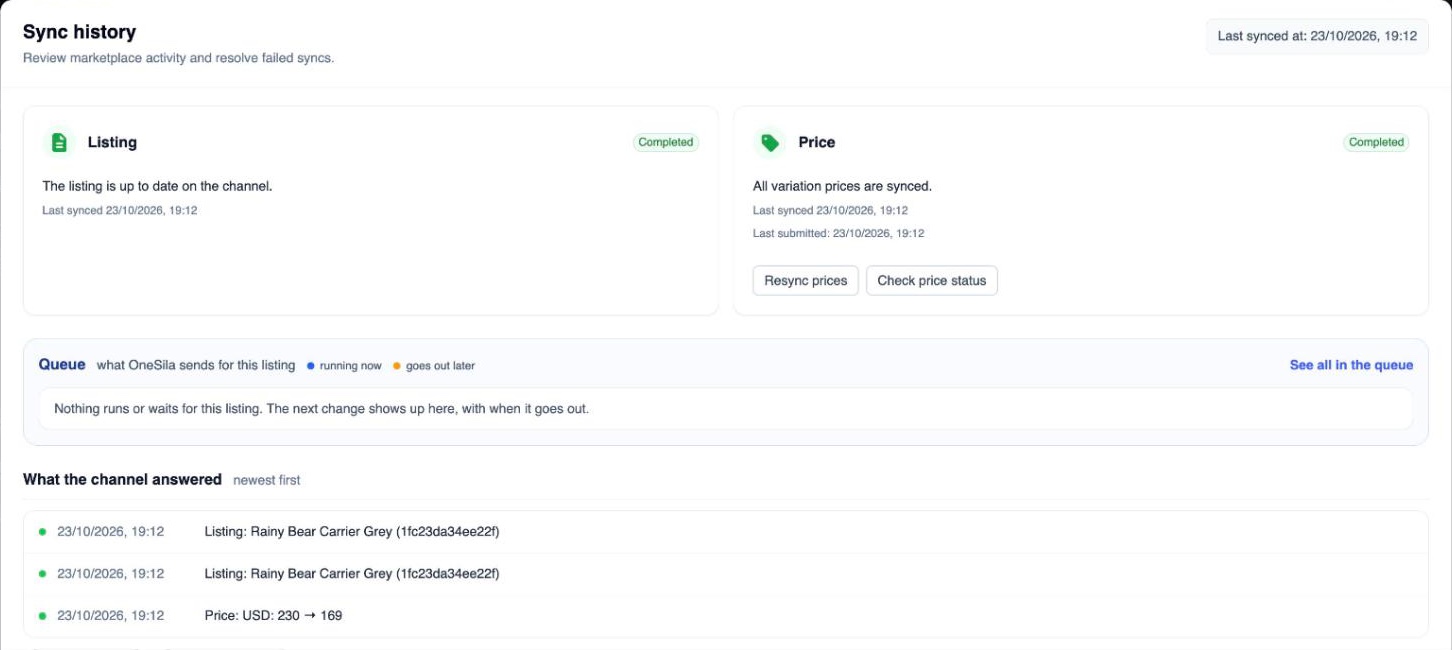
Found a product that failed or needs action? Open it, go to its Channels tab, and click Sync history: the second button in your channel's row.
| Part | What it shows |
|---|---|
| Listing | Whether the product on your channel is up to date, and when it last synced. |
| Price | Whether your channel has the right price. More on the prices page. |
| Queue | What's waiting to go out for this product, or going out right now. |
| What the channel answered | Everything OneSila sent, newest first, with your channel's answer. A failed one tells you why. |
Edit in OneSila, never in your channel
OneSila is your master data. Changes go one way: from OneSila to your channel. Nothing comes back.
OneSila
Where you and your team make every change.
Your channel
Shows what OneSila sends. Changes made here don't last.
Do
- Change titles, texts, images and properties in OneSila.
- Found something on your channel that OneSila doesn't have? Add it in OneSila first.
- Let OneSila send it.
Don't
- Fix products on the channel itself, not even quickly.
- Delete a property in OneSila without checking your online store. On some stores, Magento for example, its field goes too, with all its values.
Check yourself
9 questions
Pick one answer for each. You'll see right away if it's right, and why.
-
1On a marketplace, a Required field isn't mapped. What happens to the listing?
Show the answer
Right answer: B. It's blocked, and shows Action required until you map it. On a marketplace, only what's mapped is sent. An optional field that isn't mapped is skipped (A). A required one blocks the listing.
-
2How do you put a product on your channel?
Show the answer
Right answer: A. Set your channel to Added on the product's Channels tab. OneSila sends it straight away, whatever Auto sync says.
-
3Your channel needs a category for a product. Where do you set it?
Show the answer
Right answer: C. Under the arrow at the end of your channel's row, on the product's Channels tab. Details that only exist on your channel are set there, per product. What you find depends on your channel.
-
4You change a product from Added to Excluded for your channel. What happens?
Show the answer
Right answer: B. It's removed from your channel straight away. Removing never waits. Your channel deletes the product, or archives it where the channel offers that.
-
5Auto sync is off. You change a product's description in OneSila. What happens?
Show the answer
Right answer: B. It waits in the Queue until you resync the product or send it. With Auto sync off, changes wait for you. That's the default for every channel.
-
6Auto sync is on. You're reworking a product's images, and your channel shouldn't show it half done. What do you do?
Show the answer
Right answer: C. Lock the product on your channel, and unlock it when you're done. Its changes wait until you unlock it. Your other products keep syncing as usual.
-
7The Queue shows a product under Failed today. What do you do?
Show the answer
Right answer: D. Open it to see why, fix the product, and retry it. The channel tells you why it refused the change. Fix that in OneSila, then retry from the list.
-
8Your channel shows 3 under Action required on the Integrations list. How do you find out which products, and why?
Show the answer
Right answer: B. Open Integrations › Assignments, and filter on your channel and Action required. Each product shows its status, and the reason under it.
-
9You fix a typo in a product title on the channel itself. What happens at the next sync?
Show the answer
Right answer: A. OneSila's title replaces your fix. OneSila is your master data and never reads back from your channel. Make the fix in OneSila.
Next · Module 4
Dealing with marketplace challenges
A marketplace blocked or refused your listing. Where do you start, and how do you find the real cause?
Go to module 4