
Module 4 of 4
Dealing with marketplace challenges
A marketplace blocked or refused your listing. Where do you start, and how do you find the real cause?
Resolving errors always starts at the log
A marketplace only accepts what meets its rules, and every marketplace has its own. You won't learn them all, and you don't need to. When a listing is blocked or refused, OneSila logs what happened, and most of the time the log tells you exactly how to fix it.
This module teaches you one routine: read the log, fix it in OneSila, resync. And what to check when the log isn't clear.
In this module you learn to
- Spot a listing with an issue, and tell what state it's in.
- Follow one routine for any marketplace problem.
- Open the log, and use How to fix.
- When the log isn't clear, check the three common causes: something missing, a mapping, or something the marketplace doesn't accept.
- Know when to refresh, and when to contact OneSila support.
- Avoid the moves that make things worse.
- The product misses something the marketplace needs.
- A value isn't mapped, or is mapped wrong.
- The marketplace doesn't accept what you send, like a size it doesn't use.
This module builds on Sending products to your sales channels (module 3) and on Properties, Rules & Mapping.
One routine for every problem
This is how the OneSila team solves marketplace problems too. Keep this page next to you.
What a listing with an issue looks like
It all starts with understanding and identifying. Before you fix anything, know which product, on which channel, and what state it's in.
Right after you send
You add a product to a channel, or resync it. The channel's row on the product's Channels tab shows its status. Under a problem, the reason is written out.




| Status | What it means |
|---|---|
| Action required | Something in your data. You can fix it: start at the log. |
| Rejected by external approval | The marketplace refused it. Read why in the log, fix, resync. Not every marketplace gives the full reason: sometimes a talk with your account manager there is what gets it approved. |
| Pending external approval | The marketplace is reviewing it. Wait. |
| Failed · System Error - contact support | Not in your data. Contact OneSila support. |
Where to find the log
Every product has a log per channel: Sync history. You open it with the clipboard button at the end of the channel's row.
On the product
Open the product, go to its Channels tab, and click Sync history in the channel's row.

From a list
In Integrations › Assignments, or your channel's Products tab, every row has the same clipboard button. Handy when you're working through a filtered list.

Reading the log
Sync history shows what OneSila sent, what the marketplace answered, and how to fix it.
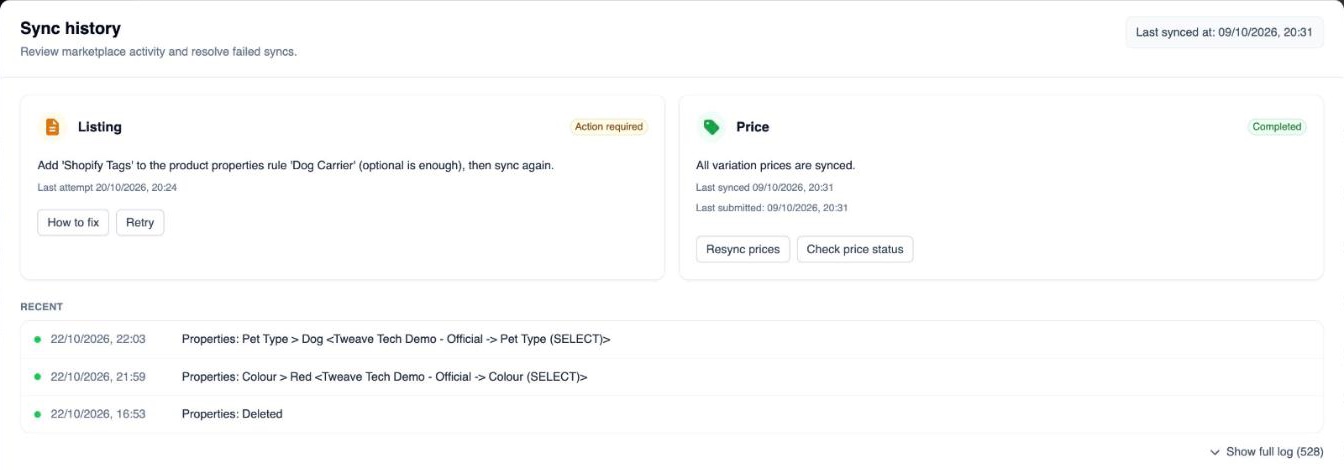
| In Sync history | What it shows |
|---|---|
| Listing | The listing's status, and the latest message. Resync sends it again. |
| Recent · Show full log | What OneSila sent, and what the marketplace answered, newest first. |
| How to fix · Find help | How to fix opens the guide for a known error. No guide for it yet? Find help searches the help library for you. |
System Error - contact support as the message? That one isn't in your data. Contact OneSila support.
Using the resolution guide
This is where most problems get solved. Click How to fix in the log, and a guide opens next to it, written for that exact error.
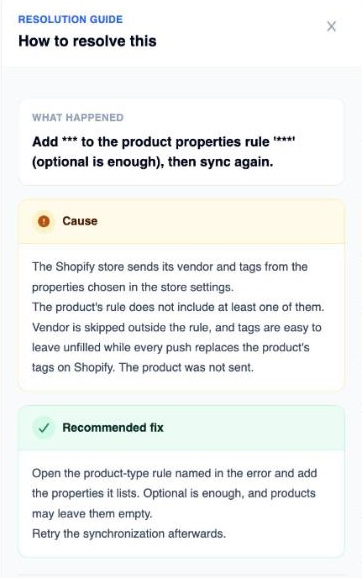
| In the guide | What it tells you |
|---|---|
| What happened | The error, in plain words. |
| Original marketplace error | The marketplace's own message, word for word. |
| Cause | Why it happened. |
| Recommended fix | What to do in OneSila. Do it, then resync once. |
More than one way to solve it? The button says View 2 solutions, and you pick the one that fits. Open full guide shows the whole page. No guide for this error yet? Find help searches the help library for you.
- Attribute, aspect, item specific = property
- Option, allowed value = select value
- Browse node = category
- Variation theme = what makes the variations
- GTIN = EAN
Common errors, and where to look
Every marketplace words its errors differently, but most come down to a handful of causes. These are the ones we see most. The log isn't clear, or there's no How to fix? Find the line that looks like your error, and go to that page.
| The log says something like… | Look at |
|---|---|
| Missing information, even when it's filled in | The product misses something. Switch the inspector to that channel to see what. Page 9. |
| Not mapped, or custom values not allowed | A value isn't mapped. Page 10. |
| It works some days, not others | A value is mapped wrong: twice, differently per account, or changed in the meantime. Page 11. |
| Not allowed for variations, or the wrong category | The marketplace doesn't accept it. Page 12. |
| Value rejected, though it's on their list | It depends on another property's value. Page 12. |
| Too long, too short, missing EAN or barcode | A value on the product itself. Fix it on the product, then resync. |
| System error, try again later, too many changes | The marketplace's side. Wait, then resync once. Page 13. |
| None of these | Page 13. |
Three out of four errors come down to the first three causes. That's why the next sections go through them one by one.
The product misses something the marketplace needs
The most common case: the marketplace says a property is missing, but you can see it's filled in. Usually you're looking at the wrong rule. The Default one, while this channel has a rule of its own. Or the other way round. Or another channel's rule altogether: eBay's, while the problem is on Shein.
How to check
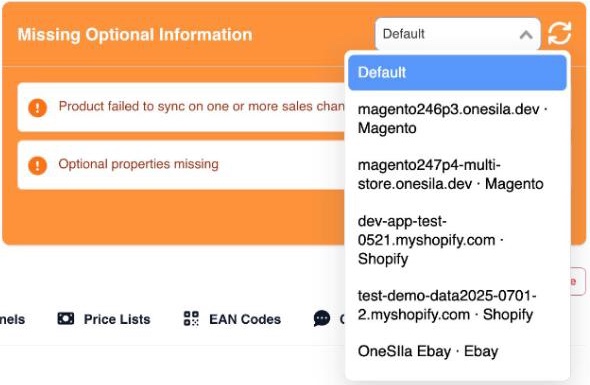
Watch out: be cautious changing a shared rule to fix one product. It changes every product of that product type. Adding a property? Consider adding it as Optional first: it shows, but blocks nothing. More info: Properties, Rules & Mapping, module 2.
A value isn't mapped
Some marketplace fields take any text: there, your value goes out as you wrote it. Others only accept their own list: there, a value you haven't mapped blocks the listing. The log says it isn't mapped, or that custom values aren't allowed.
How to fix
Go to the channel's Select Values tab, find the value, and map it to the marketplace's value: the same way you mapped during the import. Then resync the product.
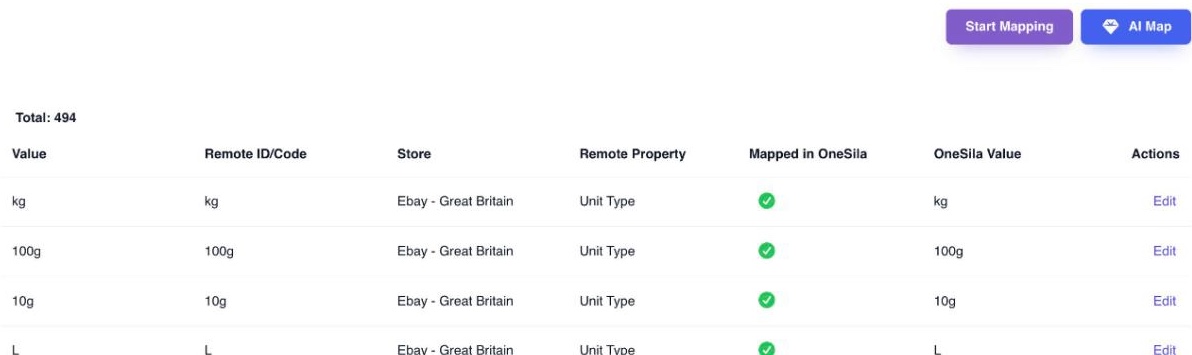
Remember: a new value needs mapping on every marketplace you sell on.
A value is mapped wrong
Something can be mapped, and still be wrong: mapped to the wrong field, mapped twice, mapped differently on your second account, or changed by someone in the meantime.
Look from the marketplace's side too
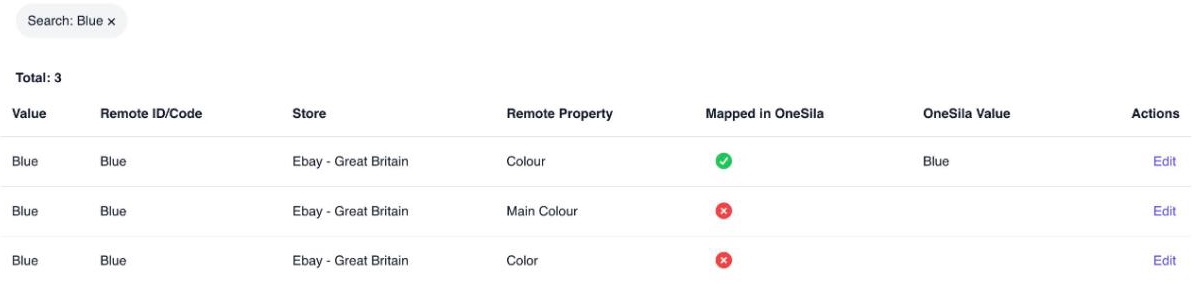
On the channel's Select Values or Properties tab, search for the value or field. You see every marketplace entry with that name, and what it's mapped to in OneSila. Or filter on OneSila Value or OneSila Property to see everything mapped to yours.
The marketplace doesn't accept what you send
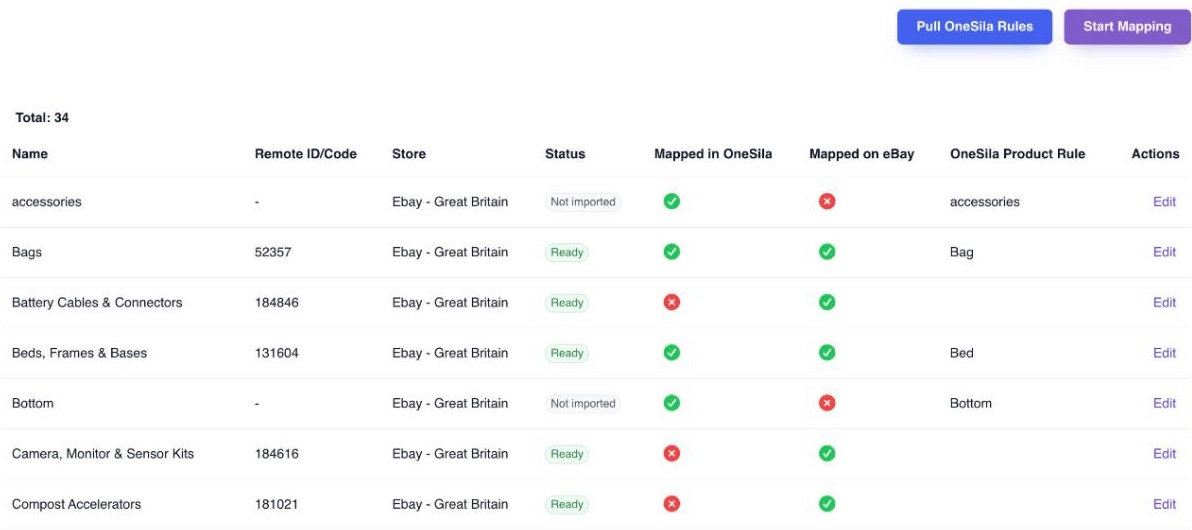
Your product rule links to a marketplace category, on the channel's Product Rules tab. That category decides what the marketplace accepts. Your setup and theirs don't always overlap the way you expect.
Variations are where it bites
In OneSila, a property in the configurator decides the variations: size, colour, style. But each marketplace category allows only some fields for variations.
Values that depend on each other
Some marketplaces only accept a value together with the right value of another property. A size, for example, can be valid on its own, but not with the size system or target group you picked. The error names the value it rejects. The fix is often in the other property, so check what goes with it.
When the log doesn't get you there
Nothing is missing, the mapping is right, and the marketplace accepts what you send. And it still fails. Then it's usually one of these.
The message points the wrong way
Some marketplaces name a symptom, not the cause. Amazon, for example, can say a property is missing, then that its value is wrong, while the cause is another property. eBay can complain about a word like "lot" in your description, while the real issue is the price gap between variations. Read the original marketplace error slowly, to the end, and check the guide. Still makes no sense? Contact OneSila support.
The marketplace changed its requirements
A category suddenly asks for something new, or a field you mapped is gone. Refresh what OneSila knows: Refresh rule schema on the channel's Product Rules tab. Changed a mapping? Map its values there too.
It's the marketplace's side
eBay says "system error, try again later". Shein asks you not to change prices so often, or can't load its own requirements. There's nothing to fix in OneSila: wait, then resync once.
Something on the marketplace itself
A policy or account setting on the marketplace is off. The message usually names it. Fix it there, then resync.
Moves that make it worse
These came up again and again in support. Each one turns a small problem into a bigger one.
Check yourself
8 questions
Pick one answer for each. You'll see right away if it's right, and why.
-
1A listing shows Action required. What's your first move?
Show the answer
Right answer: C. Open its Sync history, read the message, and click How to fix. Most of the time, the log tells you what to do. Fix it in OneSila, then resync once.
-
2Shein says a property is missing. On the product, it's filled in. What do you check first?
Show the answer
Right answer: B. Whether Shein's own rule has the property, with the inspector set to Shein. "Filled in but missing" usually means you're looking at the Default rule, while the channel has a rule of its own.
-
3You add a new value, Sage, to your Colour property. A marketplace now blocks the listing. Why?
Show the answer
Right answer: A. Sage isn't mapped for that marketplace yet. New values need mapping on every marketplace. Map Sage on the channel's Select Values tab, then resync.
-
4An eBay listing fails some days and works on others. What do you suspect?
Show the answer
Right answer: C. A value mapped to two eBay values. Sometimes the right one is picked, sometimes the wrong one. Search the value on the Select Values tab, and keep one mapping.
-
5Your product varies by style. The marketplace refuses the variations. What's the likely cause?
Show the answer
Right answer: D. The marketplace's category doesn't allow style for variations. Each category allows only some fields for variations. Pick another category, a field it allows, or separate products.
-
6A listing shows System Error - contact support. What do you do?
Show the answer
Right answer: B. Send support the product, the channel and the full message. A system error isn't in your data. Resyncing again (A) won't fix it.
-
7A product is under review on a marketplace, and it looks wrong. What do you do?
Show the answer
Right answer: C. Fix it in OneSila, and resync once. The product comes from OneSila, so you fix it there. Fix it on the marketplace instead, and OneSila sends its own version the next time it syncs: your fix is gone.
-
8Shein says Brand is missing. You open the product's eBay rule: Brand is in it, and Required. What now?
Show the answer
Right answer: C. Check Shein's rule: eBay's rule doesn't count for Shein. Always look at the channel that failed, and at its own rule. Comparing with another channel only sends you the wrong way.
You've finished this course
Working with channels
Questions about your own setup? We're happy to go through it with you.
Book a meeting