
Module 1 of 3
Properties and values
One property for each detail. One value for each meaning. In your own words. Everything else in OneSila builds on this.
What are properties and values?
Think of a product's spec sheet, or the label inside a T‑shirt. Each line names something about the product: that's a property. What's written next to it is the value.
| Property | Value, for one T‑shirt |
|---|---|
| Colour | Navy |
| Size | M |
| Material | 100% Organic Cotton |
| Fabric weight (gr/m2) | 180 |
The property stays the same for every T‑shirt. The value is what changes from one product to the next.
What they're for
Being found
Shoppers filter on them in your shop. Marketplaces use them in search.
Being listed
Marketplaces won't list a product until the properties they require have a value.
The product page
The specs on a product page, care instructions, safety notes: shoppers read them before they buy.
Writing content
OneSila's AI uses them to write titles and descriptions. Better properties, better text.
Your own records
Supplier, shipping or customs details. With Public Information off, they stay in OneSila.
Saying it once
You fill in a value once, in OneSila. Every channel gets it in the form it needs.
The same idea, other words
| In OneSila | What others call it |
|---|---|
| Property | Attribute (Magento, WooCommerce, Amazon), aspect (eBay), metafield (Shopify), specification, characteristic |
| Value | Attribute value, option (Magento), term (WooCommerce) |
| Select Values | The list of options for one property: value list, picklist, dropdown |
All your properties and values together are sometimes called your taxonomy: the way you describe your whole catalogue.
Every channel asks about your products
Your webshop wants a T‑shirt's colour and size, so shoppers can filter on them. Amazon wants colour, size, brand and material before it lists the shirt. eBay asks almost the same, but never quite. Each of these is a product detail.
Simplified examples. * means the marketplace requires it.
In this module you learn to
- Choose the right property type for a detail.
- Keep values consistent: one value for one meaning.
- Clean up values after an import.
- Name properties in your own words, and know where those names show up.
Pick the right kind of property
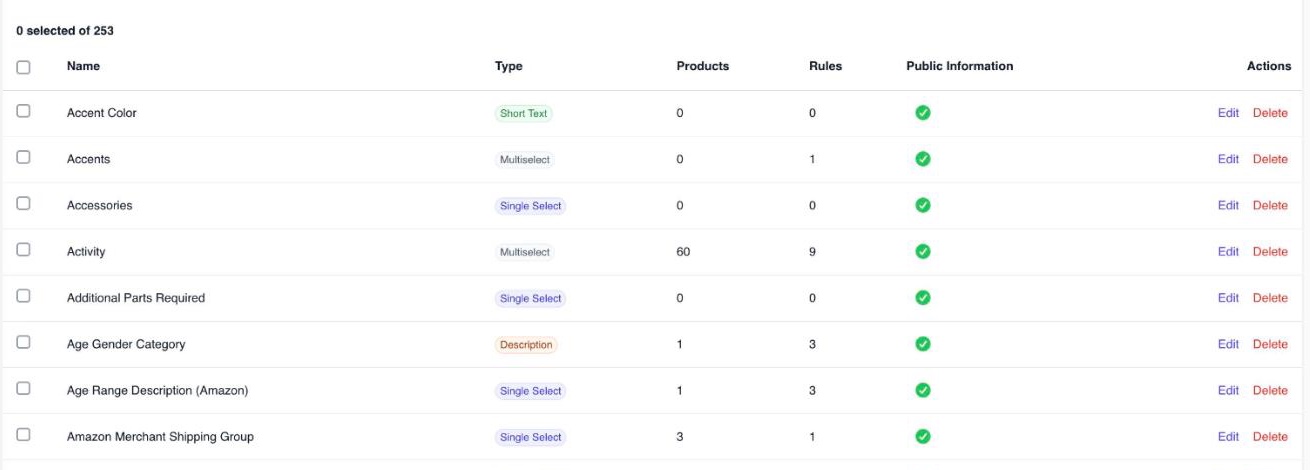
Every property holds one kind of value, called its Type. The type decides what people can fill in. Pick it to match the detail, not the first thing that comes to mind.
Single Select
One option from a list. Colour: Navy. Size: M.
Multiselect
Several options from a list. Activity: Running, Hiking.
Whole Number Decimal Number
A number. Put the unit in the name: Fabric weight (gr/m2), and fill in the number only.
Yes/No Choice
Yes or no. Can it be gift wrapped?
Short Text Description
Free text. Only for text that's different on every product.
Date Date and Time
A launch date, a best‑before date.
Does the customer choose it when they buy, like the size of a shirt? Use Single Select: one clear choice from a list. That's what lets one product come in several sizes. More on this in module 2.
One meaning, one value
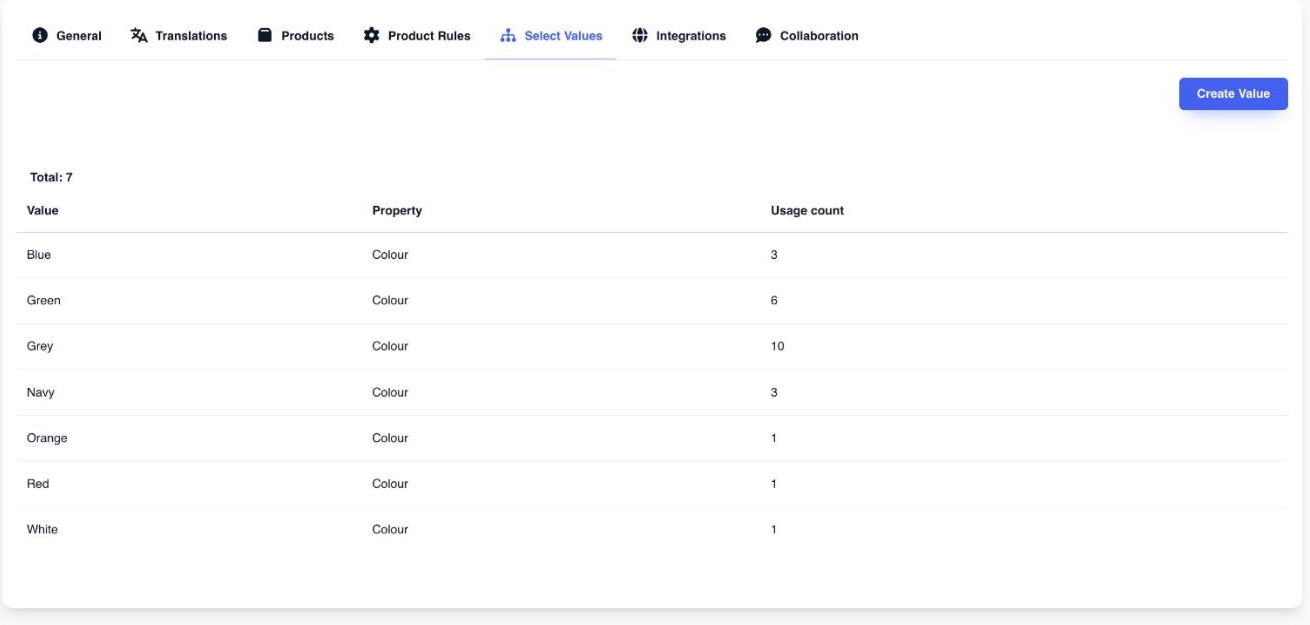
The options in a list are called Select Values. A list only helps when each meaning appears once. Navy is one value. Not "Navy", "navy blue" and "NVY" side by side.
On your webshop
Every value becomes a filter option. Two spellings of one colour means two filter options, and shoppers miss half your products.
On a marketplace
Each of your values is mapped to one of theirs, once. Two values for one meaning means two mappings that can point different ways.
Tidy your values after an import
When you import a channel, most of its values get mapped to yours on the way in. Some mess still slips through, and it's worth a look once the import is done.
Free text becomes a list
Some marketplace details are free text, like Amazon's text fields or a Mirakl attribute without a list. When your property is a list, every different spelling becomes its own value. So "Navy" and "navy" both show up.
Old values come along
Values typed differently over the years arrive as separate values too. Look at the Usage count: a value with 0 is used by no product.
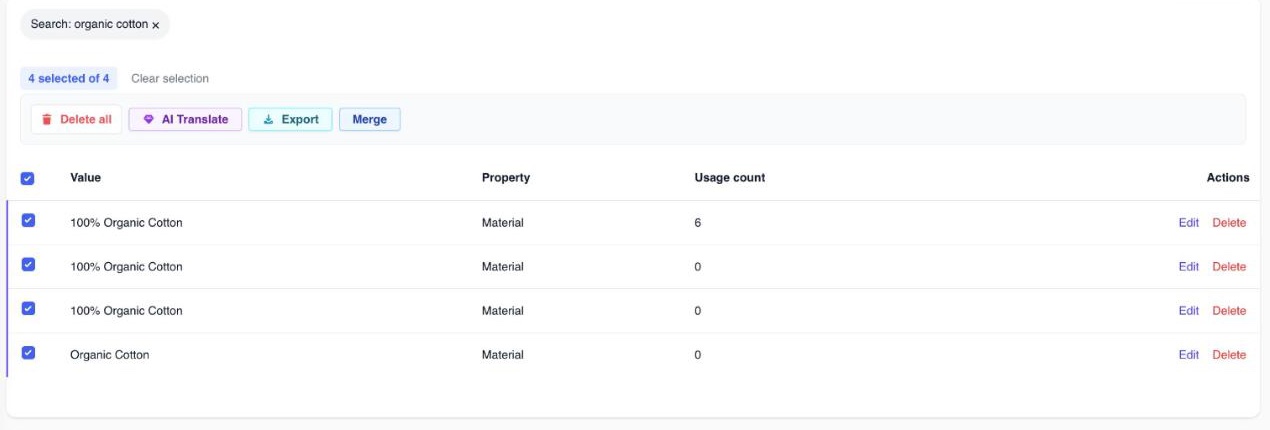
Merging only works within one property. "Navy" in Colour and "Navy" in Fabric Colour stay separate.
Your words, not theirs
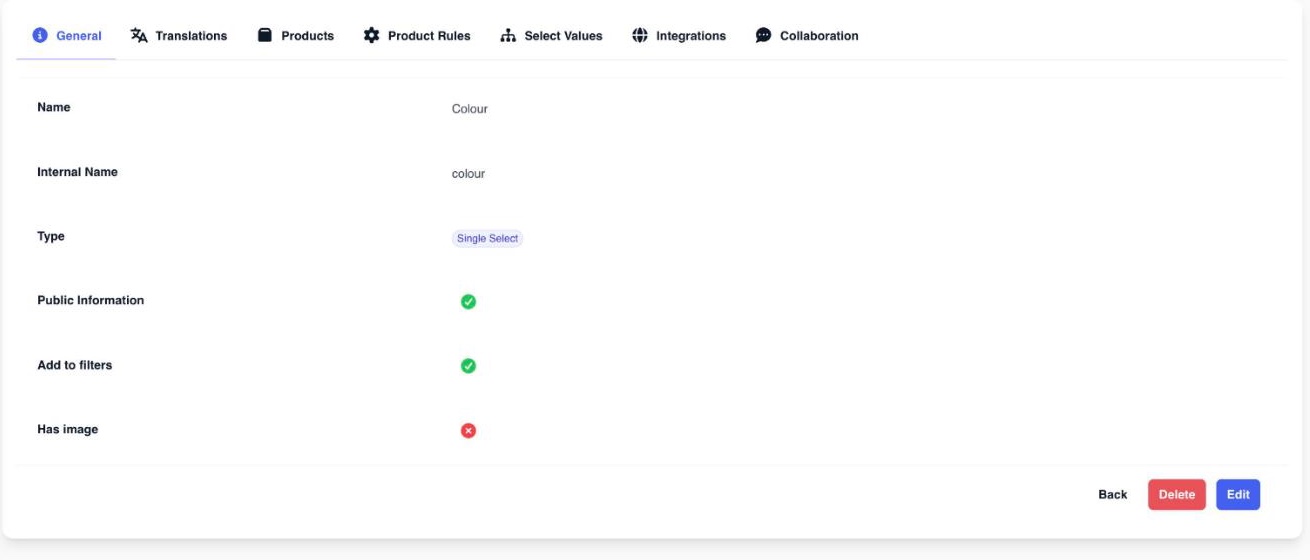
Properties are yours. Name them the way your team talks: Colour, not Color, if that's what you say. Each channel's own words are handled by mapping, not by renaming.
On your storefront, names show as they are
Shopify, Magento and WooCommerce get your property names and values exactly as they are in OneSila. Rename Size to "Size (Amazon)" to keep track, and shoppers see "Size (Amazon)". A property only one marketplace needs, like Style (eBay), is fine when it really is a different detail. Just keep it out of your storefront's rule: module 3 shows how.
On a marketplace, mapping translates
Amazon says Color, you say Colour. You map Colour to Color once. Amazon gets its own word and its own values. Your names stay yours. Module 3 explains more.
Check yourself
6 questions
Pick one answer for each. You'll see right away if it's right, and why.
-
1In "Colour: Navy", which is the property and which is the value?
Show the answer
Right answer: B. Colour is the property, Navy is the value. The property names the detail. The value is what's filled in for this product. Colour is the same for every T‑shirt; Navy changes from one to the next.
-
2People write the same colour in different ways: Navy, navy blue, NVY. Which type stops that?
Show the answer
Right answer: C. Single Select. Everyone picks the same Navy from a list, so nobody can type "NVY". Short Text and Description are free text, so the mess stays. Yes/No only holds yes or no.
-
3A shirt comes in S, M and L, and the customer picks one. Which type fits Size?
Show the answer
Right answer: D. Single Select. The customer picks exactly one size: one clear choice from a list. Multiselect allows several at once, and a shirt can't be S and M at the same time.
-
4A value has a Usage count of 0. What does that mean?
Show the answer
Right answer: A. No product uses it. Usage count shows how many products use a value. A 0 is often a leftover, for example from an import. A good one to merge or remove.
-
5Material has "100% Organic Cotton" three times. One is used by 6 products, the others by none. What do you do?
Show the answer
Right answer: C. Merge them into one. The products follow. Merge keeps one value and moves every product to it. Deleting the one in use (B) leaves 6 products without a material. Leaving them (A) keeps the mess.
-
6You rename Size to "Size (Amazon)". What do shoppers on your Shopify store see?
Show the answer
Right answer: B. Size (Amazon). Storefronts show your names exactly as they are in OneSila. Name properties for the people who read them.
Next · Module 2
Product rules
A product rule defines what a kind of product is: which properties belong together, and how strict each one is. It brings structure to your catalogue, and tells you when a product is finished.
Go to module 2